



CSS animations let you move or change an HTML element from one style to another using only CSS. You define the stages in a @keyframes rule, then attach it with the animation property, which controls duration, timing, delay and repetition. Because they need no JavaScript, they are a lightweight way to add loaders, hover effects and attention cues to a website.
Animation is an efficient way to hold attention and delight visitors on your website, whether you’re enhancing a button, filling time while a page loads, or adding some extra flair to a landing page.
CSS animations make these seemingly magical effects possible. CSS provides a powerful and versatile toolkit for bringing websites to life, from simple state transitions to elaborate interactive animations.
CSS animations, at their core, let you add transition effects to web elements with the help of keyframes, timing functions, and other attributes.
So, if you want to add a bit of style and class to your website, come with us on this educational trip into the world of CSS animations. Let’s bring out the full potential of your web projects and leave a lasting impact on your users.
Key takeaways
- CSS animations change an element's styles over time using a @keyframes rule and the animation property, with no JavaScript.
- The animation shorthand sets name, duration, timing function, delay, iteration count, direction and fill mode.
- Use transitions for simple two-state changes and animations for multi-stage, automatic or repeating motion.
- Animate transform and opacity where possible; animating layout properties causes janky frames.
- Respect prefers-reduced-motion and keep animations subtle so they help users rather than distract them.
What Are CSS Animations?
CSS, or Cascading Style Sheets, is the style sheet language that controls the visual presentation of web pages. CSS allows you to change the font, colour, and layout of individual elements, making it easier to design visually appealing web pages.
Since its introduction in the mid-1990s, CSS has gone through several major revisions. CSS3 split the language into separate modules, and one of those modules, CSS Animations, is what lets you animate elements without writing JavaScript.
How Do CSS Animations Work?
CSS animation is a feature of CSS that lets you animate a change in one or more style properties of an element and gives you control over different aspects of the animation. Pure CSS animations are created entirely in HTML and CSS, without the use of any other code or media.
Because they don’t rely on external scripts, and the browser can optimise them itself (for example by slowing updates in tabs that are not visible), CSS animations are usually lighter than script-driven ones.
You’ll need an HTML element to animate, a CSS rule to link the animation to the element, and a set of keyframes to define the initial and final styles for your CSS animation. You can modify the animation’s pace and delay by including declarations.
Which CSS Animation Properties Should You Know?
Every CSS animation has two parts: a @keyframes rule that describes what changes, and the animation properties that control how it plays. Here is a simple fade-in you can drop into any stylesheet:
@keyframes fade-in {
  from { opacity: 0; transform: translateY(12px); }
  to { opacity: 1; transform: translateY(0); }
}

.card {
  animation: fade-in 0.6s ease-out both;
}
The shorthand on the last line sets the name, duration, timing function and fill mode in one go. These are the properties you will use most often:
| Property | What it controls | Example value |
|---|---|---|
| animation-name | Which @keyframes rule to run | fade-in |
| animation-duration | How long one cycle takes | 0.6s |
| animation-timing-function | The speed curve across a cycle | ease-out |
| animation-delay | The wait before it starts | 200ms |
| animation-iteration-count | How many times it repeats | infinite |
| animation-direction | Forwards, backwards or alternating cycles | alternate |
| animation-fill-mode | Which styles apply before and after it runs | both |
| animation-play-state | Pauses or resumes it | paused |
Animation or transition? Use a CSS transition when an element simply moves between two states, such as a button changing colour on hover. Use a CSS animation when you need several stages, an automatic start or repeats, such as a loading spinner. Our guide to basic web design elements shows where these effects fit on a page.
Why Should You Use CSS Animations?
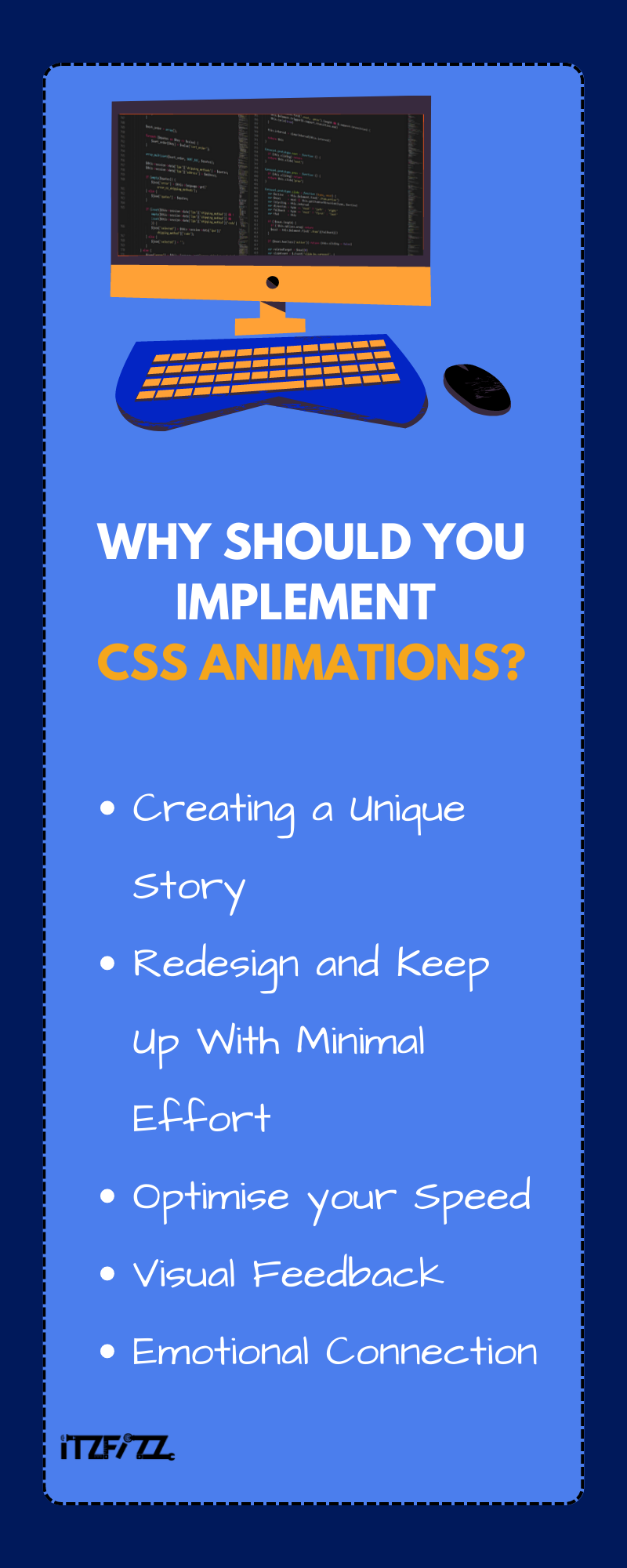
You and your fantastic customers or visitors will both benefit greatly from the addition of CSS animations to the digital experience since these animations can fuel memorable interactions and guarantee that they are occurring at the pace expected by today’s users.
Creating a Unique Story
Websites and mobile applications are the most effective means of spreading your brand’s message in today’s global market.
Using CSS animations, you can make something truly one-of-a-kind for your audience by adapting to their actions and putting them at the center of your brand’s story. And the interactivity of your user experience design is a key part of your narrative.
Redesign and Keep Up With Minimal Effort
The CSS programming language is concise and well-structured. In the field of web design and development, this is referred to as “clean.” For basic app and website development, style sheets are usually kept to a minimum.
So, when you need to make a change, generate an update, and apply it throughout your entire interface, it shouldn’t take you too long to figure out where to make the change, build your update, and apply it. In other words, you won’t have to rewrite and upload a ton of HTML pages.
Optimise your Speed
CSS is “lightweight” in comparison to other coding languages like JavaScript, making it an excellent tool for incorporating dynamic, interactive content and experiences into your product without negatively impacting load times.
In addition, it tends to be actively cached. Together, this means that CSS animations should load quickly after the initial click and on subsequent loads of your website or app.
All businesses with an online presence need to consider speed because it is a ranking element in Google search results, which our technical SEO guide covers in more detail.
Visual Feedback
Users are helped along in their interactions by the visual feedback they receive, which also helps to eliminate any ambiguity. Small feedback moments like these are called micro-interactions.
Emotional Connection
Animation can generate feelings of surprise and excitement, strengthening the user’s emotional connection to your website and business.
What Are the Main Types of CSS Animations?
Loading Animations
Although they may not be the most interesting type of CSS animation, loading animations are vital to the user experience. Visitors to apps and websites are more inclined to be patient with some loading time if you’ve given them a hint that something awesome is about to happen.
CSS Loader with Dots: The now-iconic “Just a sec!” blinking dot-line has become a global phenomenon. This choice, like the code itself, is straightforward and easy to understand, making it an excellent alternative for websites that take themselves seriously or adhere to a minimalist aesthetic.
See the Pen CSS Dot Loader by Brian Behrens (@brainbrian) on CodePen.
Simple HTML & SVG Loading Spinners: The spinner is another typical loading icon. The Scalable Vector Graphic (SVG) format allows this animation to be resized without compromising image quality.
See the Pen Simple HTML & SVG Loading Spinners by Stephen Delaney (@sdelaney) on CodePen.
Content Animations
Are you trying to find a solution to make sure users of your app and website don’t miss any important information? Use any of these CSS animations to highlight it.
Changing Text Animation CSS: Use this animation to draw attention to your headlines and other critical content by including effects like sliding in and changing colors.
See the Pen Changing Text Animation CSS by Coding Yaar (@codingyaar) on CodePen.
CSS Block Revealing Effect: This animation’s “revealing” effect is a novel method to draw attention to key sections of content that you don’t want users to miss.
See the Pen block reveal effect by valentine bibot (@vbibot) on CodePen.
CSS Reveal Slider: This seems like a terrific choice to expose readers to larger parts of must-see content like FAQs, features, etc, with lots of eye-catching fonts, dynamic buttons, and a flip feature that uncovers more information.
See the Pen CSS Slide Reveal by SeaMonster Studios (@seamonsterstudios) on CodePen.
Button Animations
Buttons are frequently the entry point for persuading users to take action or explore your content further. Add CSS animations to significant buttons to encourage interaction.
CSS Button On Hover Slide Effect: There is a plethora of choices for making ordinary buttons into eye-catching color fill animations.
See the Pen CSS Button On Hover Slide Effect by RazorX (@RazorXio) on CodePen.
Button Animations: Do you wish to give those buttons some life? With this CSS, you can give your buttons a hover effect and animations like bouncing and wiggling.
See the Pen Button animations by Rafael Arosemena (@rafaaro) on CodePen.
CSS Button Hover Effect: Your buttons will no longer be boring thanks to a light yet striking wash of color.
See the Pen CSS Transform Property Hover Effects by nl03 (@northernlights3) on CodePen.
Background Animations
It’s important to make the backgrounds of specific components of your website or app visually appealing without distracting from the primary content.
Animated Background Gradient: You can use this infinite color loop as a subtle background animation for important parts of your website or app.
See the Pen Pure CSS Gradient Background Animation by Manuel Pinto (@P1N2O) on CodePen.
CSS Animations with SVGs: The most important parts of your text will stand out among the rest, thanks to the unique background of soft, multicolored forms that flow gently.
See the Pen Jellyfish svg animation by JellyPir.@t Coding (@psyloute) on CodePen.
Simple Parallax Scroll: To give the impression of depth, a parallax scroll motion allows both the foreground and background to move, but at varying speeds.
See the Pen Parallax Scrolling Effect | Vanilla JS by Cagri Kizilkan (@cgrkzlkn) on CodePen.
How Do You Add CSS Animations to Your Website?
These CSS animations come with the necessary HTML, CSS, and sometimes other code that you can copy and paste into your website’s style sheet and customise to your liking.
If you have a custom-built website and are in charge of the code, but are unfamiliar with CSS, we would recommend learning the language before attempting to create the aforementioned animations. Start with the fundamentals of writing code and go through the greatest CSS courses.
Here are a few resources you can make use of:
FreeCodeCamp: The CSS material they present ranges from the fundamentals to more advanced subjects like responsive design and animations.
Codecademy: The CSS course material includes lessons on selectors, layout, and responsive design.
MDN Web Docs: When it comes to CSS, MDN Web Docs has you covered from beginner’s guide to sophisticated techniques like CSS animations and transitions.
CSS-Tricks: CSS-Tricks is a website dedicated to teaching web designers and developers how to use CSS.
W3Schools: The CSS courses at W3Schools go beyond the fundamentals to teach you about things like CSS animations and transitions.
As you can see from the aforementioned examples, animations typically need a sizable amount of code. If you’re confident with CSS and willing to save time and space, you might want to take use of a CSS animation library.
You can include each library into your site by following the included instructions, which typically involve including a file or CDN in your markup. After the library is installed, you can add animations by using the library’s specialized animation shorthand.
If your site runs on WordPress, you can add custom CSS without editing theme files: classic themes have an Additional CSS panel in the Customizer, and block themes have offered Additional CSS in the Site Editor’s Styles panel since WordPress 6.2.
What is Animate.css?
Animate.css, developed by Daniel Eden, is a collection of CSS animations that works in all modern web browsers. The current version, 4.1.1, ships a large set of ready-made effects such as bounces, fades, slides and zooms, which you apply to your website’s content by adding a class.
Using this library, you won’t need to spend a ton of time coding and refining what would otherwise be quite basic animations. What’s even better? The library is free to use and is released under the Hippocratic License, so check its terms before using it in a commercial project. You can install it with npm or link it from a CDN, as the official Animate.css site explains.
What Are the Best Practices for CSS Animations?
Keep Animations Simple: It’s best to keep animations simple so as not to overwhelm or confuse consumers. Create understated effects that add value without being overbearing to the user.
Try animating only one element on the page, like a button or icon, instead of, say, rotating the entire page.
Avoid Excessive Use of Animation Effects: While animations are a fun way to spice up a website, they should be used sparingly. Your website’s performance may suffer if you use too many animations.
For instance, instead of animating the entire website, you may highlight only the most crucial portions or pieces.
Use Animations to Enhance User Experience: User interactions can be made more natural and straightforward with the use of animations that provide visual feedback. When a user submits a form, for instance, you can use a loading animation to show them that their request has been received and is being handled.
Be Mindful of Performance: When viewed on mobile devices with low processing capacity, animations can have a devastating effect on a website’s load time.
Performance can be improved by testing on many devices and browsers, reducing the number of animations used on a website, and employing hardware acceleration whenever available. Where you can, animate only transform and opacity, because browsers can animate these without extra layout and paint work.
Respect Reduced Motion: Some visitors ask their device for less motion because animation makes them dizzy or distracted. The prefers-reduced-motion media query tells you when they have, so you can switch decorative animations off or swap them for a simple fade:
@media (prefers-reduced-motion: reduce) {
  .card { animation: none; }
}
Conclusion
We hope we have been able to clear all the doubts you have regarding CSS Animations. Using CSS animations, you can make your website look like a work of art that will attract and please visitors. Use your imagination to its fullest, try out new techniques, and always be on the lookout for the next big thing in web animation.
We encourage you to get in touch with us if you want to avoid spending a lot of time learning or messing with coding. We’re a web development agency that specialises in creating attractive, straightforward interfaces for reasonable rates. At Itzfizz Digital, we provide you with the tools to animate and modify the appearance of your site without having to learn any coding.