


What is WordPress? WordPress is free, open-source software for building and managing websites, from blogs to online stores. You install it on web hosting, pick a theme for the design, add plugins for extra features and write pages in the block editor. According to W3Techs, it runs 39.5% of all websites as of November 2026.
Key takeaways
- WordPress is free, open-source CMS software, licensed under GPLv2 and built on PHP with a MySQL or MariaDB database.
- W3Techs data for November 2026 shows WordPress runs 39.5% of all websites and 58.2% of sites with an identifiable CMS.
- WordPress.org is self-hosted software you install on your own hosting, while WordPress.com is a hosted service that manages hosting, security and backups.
- Pages are built in the block editor, the default since WordPress 5.0, and block themes add the Site Editor for headers, footers and templates.
- The current release line is WordPress 7.1 (August 2026), and only the latest release is treated as safe, so keep core, themes and plugins updated.
- Install only the plugins you need, because too many or poorly maintained plugins slow a site down and add security risk.
Who Is This Guide For?
Hello! and thank you for visiting our WordPress blog! We’re excited to have you and want to help you make the most of your time here. So who is this guide for? Let’s find out!
Whether you’re a complete beginner, a small company owner hoping to make your mark on the web, a blogger wanting to have your voice heard, or a web developer/designer wishing to sharpen your abilities, this guide will help you get all the information you need.
We’ll start from scratch with you and show you how to make a polished website, optimise it for search engines, interact with your target demographic, and more. Prepare to unleash WordPress’ full potential with the help of our helpful and in-depth instructions. Let’s get your WordPress site up and running now!
How Does WordPress Work?
WordPress is a powerful and easy-to-use content management system (CMS). The best part: the software is completely free, giving users the flexibility to build almost any kind of website.
It is written in PHP, stores your content in a MySQL or MariaDB database and is licensed under the GPLv2 (Source: About WordPress on WordPress.org). When someone visits a page, WordPress pulls the content from the database, wraps it in your theme’s design and sends the finished page to the browser.
Like any CMS, it lets you build a layout yourself and add functionality without writing code.
Example: you can add a Button block to a page and link it to another page, or to a section further down, straight from the editor.
For detailed tutorials, the free Learn WordPress courses from the WordPress project and WPBeginner answer most beginner questions. If you are deciding whether to build the skill yourself, read our post on the benefits of learning WordPress.
What Are the Main Parts of a WordPress Site?
Every WordPress site is built from the same few parts. Knowing what each one does makes it easier to plan your site and to brief a developer.
| Part | What it does | Where you manage it |
|---|---|---|
| Core software | The PHP application that runs the site, released by the WordPress project under the GPLv2 licence | Dashboard, Updates |
| Database | Stores your posts, pages, settings and users in MySQL or MariaDB | Your hosting control panel |
| Theme | Controls the design and layout of the whole site | Appearance, Themes |
| Plugins | Add features such as forms, SEO tools, online shops and backups | Plugins |
| Block editor | Builds posts and pages from blocks: paragraphs, images, headings, buttons and more | Any post or page |
| Site Editor | Edits headers, footers and templates with blocks (block themes only) | Appearance, Editor |
The block editor replaced the classic editor as the default in WordPress 5.0 in December 2018, and the Site Editor only appears when a block theme is active. The current release line is WordPress 7.1, first released in August 2026. The project’s release archive treats only the latest release as safe to use, so keep core, themes and plugins updated.
For hosting, WordPress.org recommends PHP 8.3 or greater, MySQL 8.0 or greater (or MariaDB 10.11 or greater) and HTTPS support. Most managed WordPress hosts meet these by default, but check before you buy a cheap plan.
Who Created WordPress and When?
It all started in 2003, when two friends, Matt Mullenweg and Mike Little, forked an existing blogging tool called b2/cafelog (WordPress.org). They wanted something simple to use, flexible enough to meet individual needs, and open source so that anyone could access it, alter it and distribute it. That fork became WordPress.
The first versions were humble blogging software with only a few options. However, as word of mouth spread and more people began using it, so did the desire for more features. Matt and the growing community valued user input and kept refining WordPress in response to their suggestions.
In 2004, they published WordPress 1.2, which introduced plugins, a revolutionary feature that allowed users to easily add new features to their websites with a few mouse clicks.
Over the years, WordPress has grown in popularity and capabilities, becoming a full-fledged CMS. The WordPress community exploded in size as programmers, designers and fans all chipped in to make the software better. Themes gave sites customised looks, the block editor arrived in 2018 and block themes later brought full site editing.
WordPress is now an industry giant. W3Techs data for November 2026 shows it runs 39.5% of all websites and 58.2% of sites that use a CMS W3Techs can identify, including some of the largest brands online as well as millions of personal blogs and webpages.
What Is the Difference Between WordPress.org and WordPress.com?
WordPress.org
WordPress.org is a free and open-source software that can be used on your own server. It’s a fully adjustable software. You can add any amount of plugins or themes, and if you are feeling adventurous, you can even play with the code. Anyone who wants to make, manage, and monetize their own website will appreciate this level of customisation.
WordPress.com
With WordPress.com, you can make a website without having to learn any coding languages. You just need to sign up, select a plan, and start building your website. WordPress.com takes care of hosting, security, and backups.
It’s a good choice for people who do not want to deal with technical setups or those who are just starting off.
Key Differences:

Why Do I Need a Website?
A website acts as platform for you to experiment and develop content that connects with your audience: A good website can:
- Open up opportunities to market your products and services to the world
- Act as a hub where people can learn more about you and contact you and even make purchases
- Build credibility
- Allow you to practice SEO strategies, market your content on social media and analyse and assess the results of your efforts
What Are the Benefits of Using WordPress?

User-friendly Website: Creating a website is made easy with WordPress because of its flexible themes, visual block editor and user-friendly dashboard.
Flexibility: It’s flexible enough to make websites that cater to all your needs whether it’s a membership site, business website, personal blog or online store. There’s a wide variety of plugins available for WordPress that allow you to modify and extend the platform to meet your unique requirements.
Vibrant Community: This community is always adding new themes, plugins, and upgrades to WordPress, keeping it current, safe, and up- to- date. There are many resources available, including tutorials, support forums, and other WordPress users, so you will never be in the dark.
SEO-friendly: WordPress’s built-in features, such as readable permalinks and automatic XML sitemaps, plus responsive themes make it a strong platform for optimising your site for search engines.
Scalability: WordPress can grow with your business, no matter how modest or ambitious your original plans may be. As your website expands, you can easily add new features like pages, blogs, and products.
Affordability: WordPress is free, open-source content management software. Although you will need to pay for hosting and a domain name, the total cost is minimum in comparison to other styles of creating a website.
What Is WordPress SEO?
Search engine optimisation, or SEO for short, is the process of fine- tuning a website so that it ranks higher in search engine results.
Similarly, when we talk about WordPress SEO, we are talking about the practice of optimising your site for search engines by making use of WordPress’s built in features.
When it comes to search engine optimization (SEO), WordPress gives you a lot of freedom. To begin, you can use one of the numerous excellent SEO plugins available, such as Yoast SEO or All in One SEO (AIOSEO).
You can improve your content, meta titles, headlines, and more with the help of these plugins. They’ll assess your content’s readability and offer tips for making it more interesting to both humans and search engines.
Using well- optimised keywords is a pivotal part of WordPress SEO.
Find keywords that are closely associated with your content or company, and use them naturally in your titles, headings and text.
This aids search engines in comprehending the content of your pages and increases your visibility in response to targeted keyword searches.
How Do You Set Up and Optimise WordPress for SEO?
WordPress SEO optimisation may seem like an overwhelming chore, but have no fear! We’ll break it all down and prove to you that you can become a WordPress SEO pro without any prior experience. With our Beginners Guide to WordPress SEO, you can learn everything from the value of keywords and writing engaging content to implementing robust plugins and maximising site performance.
Choose a reliable website hosting provider
Think of it as the skeleton of your website. Like a sturdy building, a reliable hosting service improves your website’s performance and usability.
1) How do I install WordPress on my Hosting Platform?
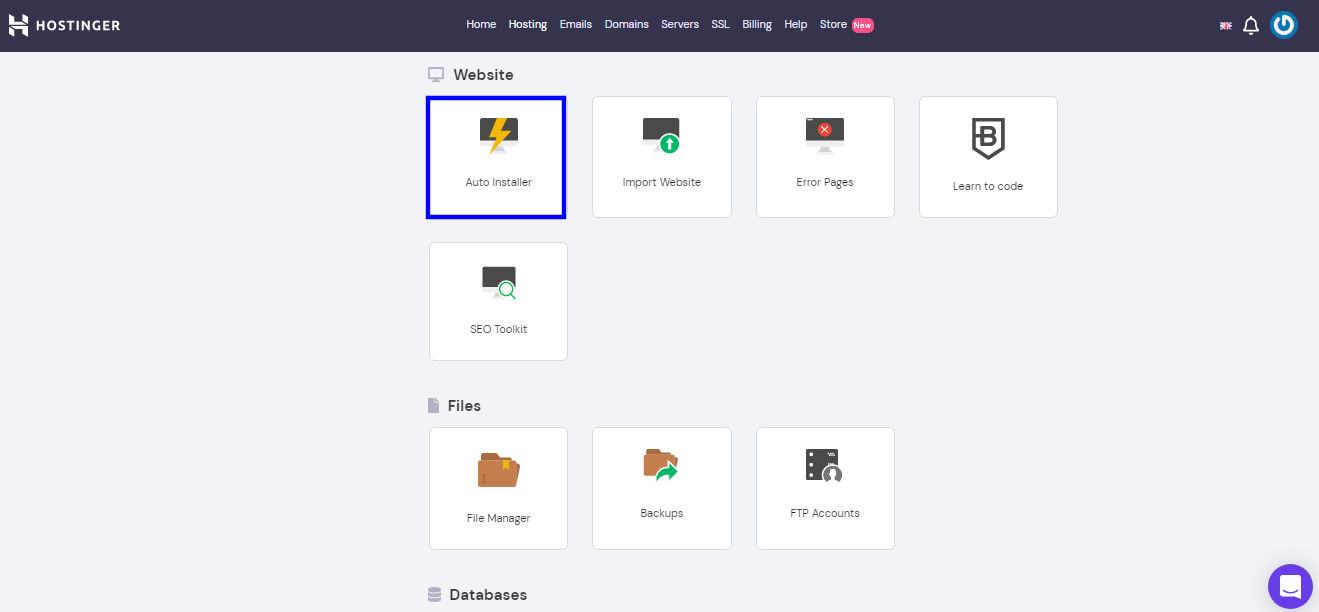
It’s fairly straightforward: head over to Hostinger or an equivalent host (any host that offers one-click WordPress installs), then create an account or log in. Once you’re in the panel, connect or register a domain first.
Once that’s done, open your hosting control panel (cPanel, Hostinger’s hPanel or an equivalent dashboard).
a) Click on the auto-installer option
b) Select the domain you want to install the WordPress CMS
c) Add a username, email and password
d) Click Install.
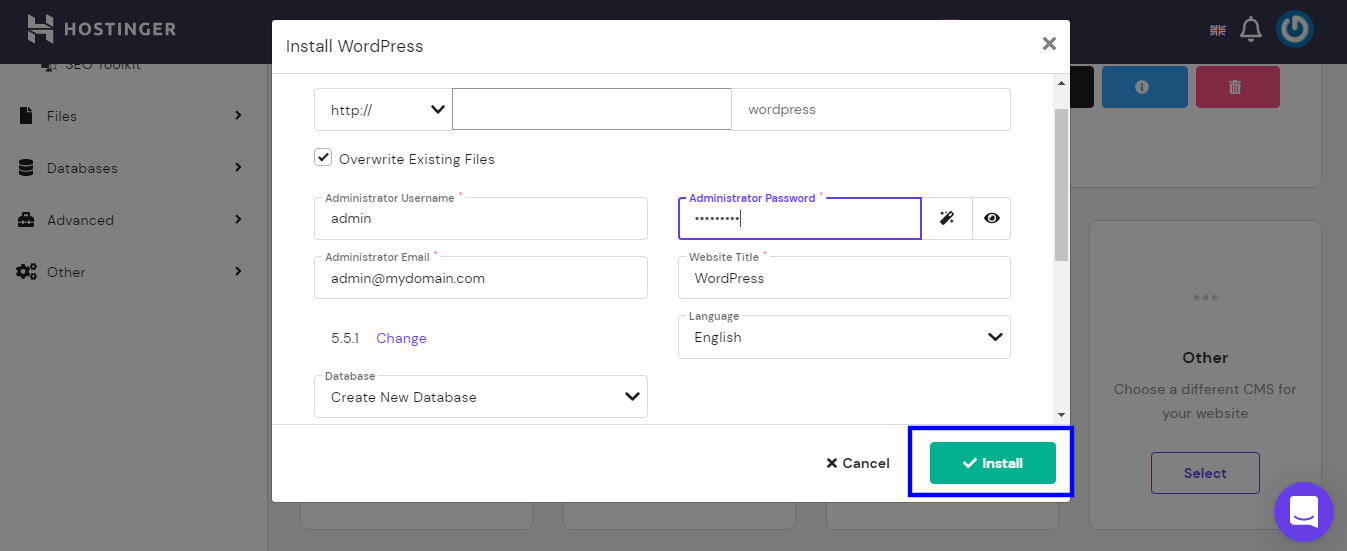
That’s it. Your WordPress CMS will now be installed on your domain and you can access it by typing in:
yourdomain.com/wp-admin.
This will open up a login portal where you can enter your credentials and get started.
Here’s an example of the WordPress Dashboard.
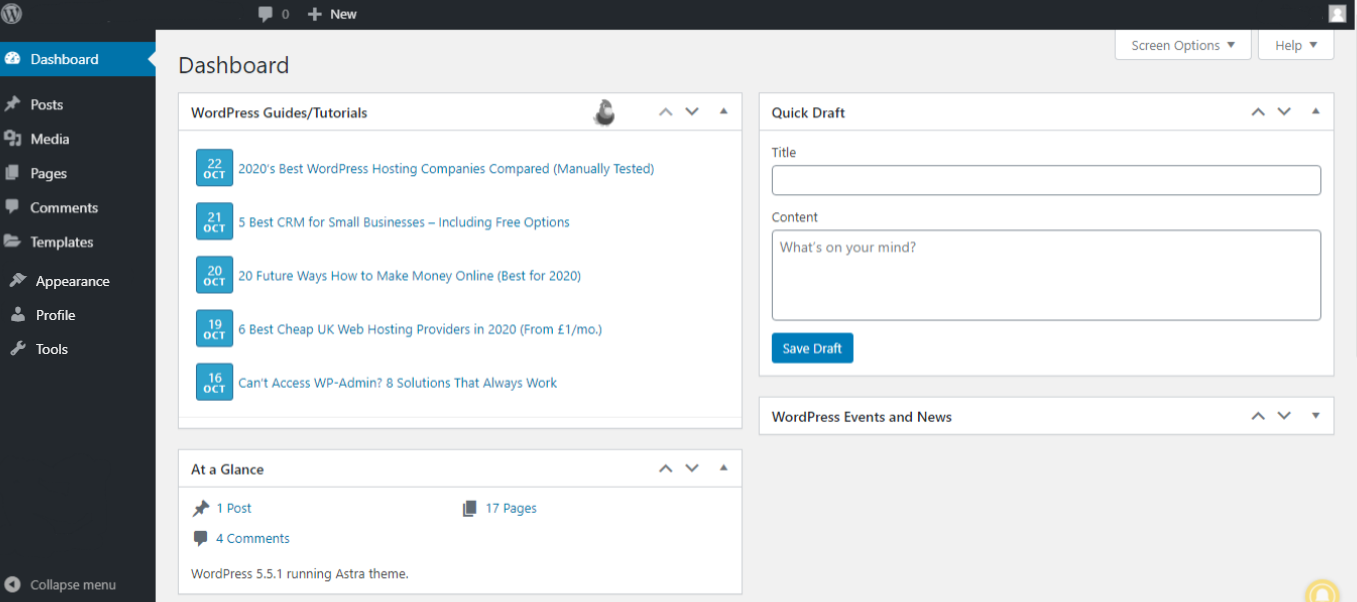
Once you’ve logged into your WordPress Dashboard, you can head down to the Appearance and click on themes.
Now the great thing about WordPress is that you have so many options to choose from, you can even filter out a perfect theme based on your expectation for the layout of the website.
Some of the most popular WordPress themes to check out are Astra, Vantage and the official default themes such as Twenty Twenty-Five, a block theme. Compare more options in our guide to choosing a WordPress theme.
Also, some of these themes come with demo content and a ready-made layout which makes it very easy for the user to visualize the layout.
2) Check search engine visibility
Improved search engine rankings direct users and search engines to your site. Therefore, ensure that search engines can discover and understand your content so that it can be indexed and ranked accurately.
You can do so by:
Making sure your website is set to index (in Settings, Reading, leave “Discourage search engines from indexing this site” unticked)
Adding a robots.txt file
Adding an XML Sitemap
3) Install an SEO-friendly Theme
If you want your WordPress site to rank well in search engines, it’s a good idea to install a theme optimised for search engines. Selecting an SEO-friendly theme provides a good start in terms of your site’s foundation, code quality, and general performance.
4) Set Permalinks Structure
In order to make your website’s URLs user- and search engine-friendly, you must first configure the permalinks structure in WordPress. Instead of using meaningless strings of numbers and letters as URL identifiers, you can make them more meaningful by including pertinent keywords in a readable format.
5) Submit your sitemap to Google Search Console
To help search engines understand your website’s organisation and content, submit an XML sitemap that lists your important pages. WordPress creates one automatically at /wp-sitemap.xml (SEO plugins usually replace it with their own), and Google’s sitemap guide explains how to submit it in Search Console. Using this strategy, Google can better index your website, increasing the chances of its content showing up in search results.
6) Install an SEO Plugin
To boost your website’s discoverability, search engine ranks, and overall efficiency, consider using an SEO plugin. With the help of an SEO plugin, you can perform tasks like creating an XML sitemap, optimising meta tags, analysing content, and conducting keyword research.
Using these resources, you can easily improve your website’s search engine optimisation (SEO) in terms of its content, structure, and more.
7) Excluding low-value content
If you want to improve your WordPress site’s search engine optimisation, one option is to remove low-quality content. The overall quality and relevancy of your indexed pages can be improved by identifying and eliminating content that gives little value to your users or search engines. This is important for keeping the credibility and trustworthiness of a website high.
8) Conduct Keyword Research
Search engine optimisation (SEO) for a WordPress site begins with keyword research. Keyword research gives you insight into your target audience, revealing what they’re looking for and how they’re looking for it when they visit your site.
9) Optimise your content
One of the most important aspects of WordPress SEO is optimising your content. The cornerstone of any effective SEO strategy is original, interesting, and well-optimised content.
Focus on producing high-quality content
Incorporate relevant keywords
Pay attention to your On-Page strategy
Leverage multimedia elements
10) Use SSL/HTTPS
Using SSL/HTTPS is important for search engine optimisation for WordPress sites for a number of reasons. Data sent between a user’s browser and your website is encrypted using SSL/TLS (TLS is the modern successor to SSL), making it unreadable to anyone who intercepts it and making your site safe to browse.
Getting an SSL certificate and switching to HTTPS builds credibility with users and search engines.
11) Optimising Your Website Speed
A website that loads quickly not only benefits users but also sends a message to search engines that your site is easy to navigate and user-friendly. Increased bounce rates and lower search engine rankings are consequences of slow page loads.
12) High-Quality Backlinks
When it comes to WordPress SEO, high-quality backlinks are essential. When other websites link back to yours, it shows that they value and trust the information you’ve provided. Search engines give more weight to a website when it has backlinks from other credible sources.
The visibility, reliability, and search engine rankings of a website can all be boosted by constructing high-quality backlinks to the site.
13) Regularly monitor and update your SEO strategy
For WordPress SEO to work, it is essential to keep track of your progress and make adjustments on a regular basis. SEO is an ever-evolving discipline due to the ever-changing nature of search engine algorithms and consumer habits.
You can keep up with the newest developments and make any necessary improvements to your SEO approach by keeping close tabs on your results.
What Are Plugins in WordPress?
Plugins are basically scripts that add functionality to your WordPress site.
Example: If you want to add a form to your website on your contact page, you can head down to plugins, and search for forms. You would be presented with a variety of options, in this case, I would choose Ninja Forms or Form Maker, then follow the steps:
1) Create a form with fields of choice
2) Stylize in with options available
3) Add the form using the editor or shortcode on the page.
And that’s pretty much it, you have successfully added a form to your website.
Validations of the fields are coded onto these forms so you can sit back, relax and add relevant plugins with ease.
Note: The functionality, vulnerability, and other issues of a plugin are subject to many factors, hence you’re advised to check the reviews and research before adding it to your website.
Additionally, piling on plugins isn’t always the best choice: too many, or poorly coded ones, can slow your site down and widen its security risk. Install only what you need and keep each one updated as part of regular website maintenance.
Top 5 Free WordPress SEO Plugins
1) Yoast SEO: In terms of content optimisation, it has features like title and meta description tweaking, XML sitemap creation, keyword analysis, and proofreading.
Website: https://yoast.com/wordpress/plugins/seo/
2) Rank Math: Rank Math covers every angle of search engine optimisation, from deep on-page changes to schema markup. It’s designed with both newcomers and seasoned pros in mind, thanks to its intuitive UI and extensive set of tutorials.
Website: https://rankmath.com/
3) All in One SEO (AIOSEO): The plugin’s features range from building an XML sitemap and optimising meta tags to incorporating social media and being compatible with Google Analytics.
Website: https://wordpress.org/plugins/all-in-one-seo-pack/
4) SEOPress: There are both free and paid versions of SEOPress available, and both are packed with features. Features like XML sitemap creation, meta tag optimisation, social media integration, and content analysis are included in the free edition.
Website: https://www.seopress.org/
5) The SEO Framework: In terms of SEO plugins, the SEO Framework is one of the most efficient and user-friendly options available. It has functions such as automatically generating meta tags, XML sitemap support, consistent URL management, and social media integration.
Website: https://theseoframework.com/
What Kind of Websites Can I Create With WordPress?
WordPress lets you create almost any kind of website:
a) A blog
b) A portfolio
c) A business website
d) An e-commerce store
e) An e-learning site
To almost anything
Which Popular Websites Use WordPress?
Some well-known sites built on WordPress, as listed in the official WordPress Showcase and WPBeginner’s list of big-name brands:
- TechCrunch
- Sony Music
- Rolling Stone
- NASA
- The White House
Conclusion
That’s all there is to it, guys. You should now have a good understanding of WordPress and why it is the preferred method for developing modern, visually appealing websites. WordPress’s user-friendly design, countless customisation possibilities, and active community will help any blogger, entrepreneur, or small company owner succeed.
Do you want assistance in making your WordPress website a reality? See how our WordPress development services work.
If you need help with any aspect of web development, from building a beautiful site to optimising it for search engines, our professional team of web developers here at Itzfizz Digital is here to help.
We are here to help you make an impact with a WordPress site that stands out from the crowd. Make your digital dreams come true by contacting us today!